Switching from Windows to Mac? You Don't Have to Relearn Everything
You just got a Mac. Maybe your company issued you one, maybe you decided to try the other side, maybe the M-series chips finally convinced you. Whatever the reason, you sit down, open your new laptop, and immediately press Ctrl+C to copy something. Nothing happens.
That is the moment every Windows switcher remembers. It is the first of many small frustrations that pile up over the first few days. The keyboard shortcuts are different. The window management is worse. The scroll direction is backwards. The menu bar is detached from the window it belongs to. Nothing works the way your hands expect it to.
The standard advice is "just learn the Mac way." Rewire your muscle memory. Accept that Command is the new Ctrl. Get used to natural scrolling. Learn to love the global menu bar.
That is one approach. Here is another: don't relearn anything. Make the Mac work like Windows instead.
The Real Pain Points
If you have used Windows for years, you have deep muscle memory for dozens of keyboard shortcuts. Not just Ctrl+C and Ctrl+V -- those are the obvious ones. It is the full set: Ctrl+Z to undo, Ctrl+F to find, Ctrl+S to save, Ctrl+W to close a tab, Ctrl+T to open one, Ctrl+A to select all. Alt+Tab to switch apps. Alt+F4 to quit. Home and End to jump to the beginning and end of a line. F2 to rename a file. F5 to refresh.
On macOS, every single one of these is different. Ctrl+C does nothing useful in most apps -- you need Cmd+C. Alt+Tab sort of works but behaves differently than Windows (it groups windows by app instead of showing individual windows). Home and End scroll to the top and bottom of the page instead of moving to the start and end of the line. F2 does not rename anything. There is no Alt+F4.
Then there is the scroll direction. macOS calls it "natural scrolling" -- swipe up to scroll down, like pushing a piece of paper up a desk. Windows does it the other way. After a decade of scrolling one direction, "natural" feels anything but.
And window management. On Windows, you have snap zones built in: drag a window to the left edge and it fills the left half. Drag to a corner for quarters. Win+Arrow keys for quick tiling. If you had PowerToys installed, FancyZones gave you custom zone layouts. macOS has... almost nothing. You can make a window full-screen, and recent versions added basic half-screen snapping, but that is about it.
The shortcuts that break on day one
What you press
- Ctrl+C -- nothing happens
- Ctrl+V -- nothing happens
- Ctrl+Z -- nothing happens
- Ctrl+S -- nothing happens
- Alt+Tab -- wrong behavior
- Alt+F4 -- nothing happens
- Home -- scrolls to top of page
- F2 -- adjusts brightness
What Mac expects
- Cmd+C -- copy
- Cmd+V -- paste
- Cmd+Z -- undo
- Cmd+S -- save
- Cmd+Tab -- switch apps
- Cmd+Q -- quit
- Cmd+Left -- line start
- Enter -- rename (in Finder)
The "Just Relearn It" Problem
The reason "just learn the Mac way" is bad advice is not that it is impossible. You can absolutely retrain your fingers. The problem is the transition period.
For the first few weeks, you will be slower at everything. You will hit the wrong shortcut constantly. You will accidentally trigger Mission Control when you meant to undo. You will close the wrong things. If you still use a Windows machine at work or at home, switching between the two becomes a nightmare -- your muscle memory cannot settle on either system.
For people who need to be productive from day one -- which is most of us -- that transition cost is real. You bought a Mac to get things done, not to spend three weeks retraining your fingers.
WinMode: Keep Your Windows Shortcuts on Mac
WinMode is a free macOS app that remaps your keyboard shortcuts so they work like Windows. Install it, grant Accessibility access, and your muscle memory just works.
Ctrl+C copies. Ctrl+V pastes. Ctrl+Z undoes. Alt+Tab switches between apps with the same hold-alt-tap-tab behavior you know from Windows. Home and End go to the beginning and end of the line, not the page. F2 renames files in Finder. F5 refreshes. Alt+F4 quits the app.
WinMode remaps 47 shortcuts across clipboard, editing, navigation, and system categories. Every shortcut is individually toggleable -- if there are specific Mac shortcuts you want to keep, just disable those remappings. You can also exclude specific apps entirely, which is useful if you are using an IDE or terminal that already handles Ctrl shortcuts its own way.
What WinMode remaps
Clipboard & Editing
- Ctrl+C/X/V -- Copy, cut, paste
- Ctrl+Z/Y -- Undo, redo
- Ctrl+A -- Select all
- Ctrl+S -- Save
- Ctrl+F -- Find
- Ctrl+N/W/T -- New, close, new tab
System & Navigation
- Alt+Tab -- App switching
- Alt+F4 -- Quit app
- Home/End -- Line start/end
- Ctrl+Home/End -- Doc start/end
- F2 -- Rename file
- Win+L/D/E -- Lock, desktop, Finder
It also fixes scroll direction. One toggle and scrolling works the way it does on Windows -- scroll down to go down. No more "natural scrolling" confusion.
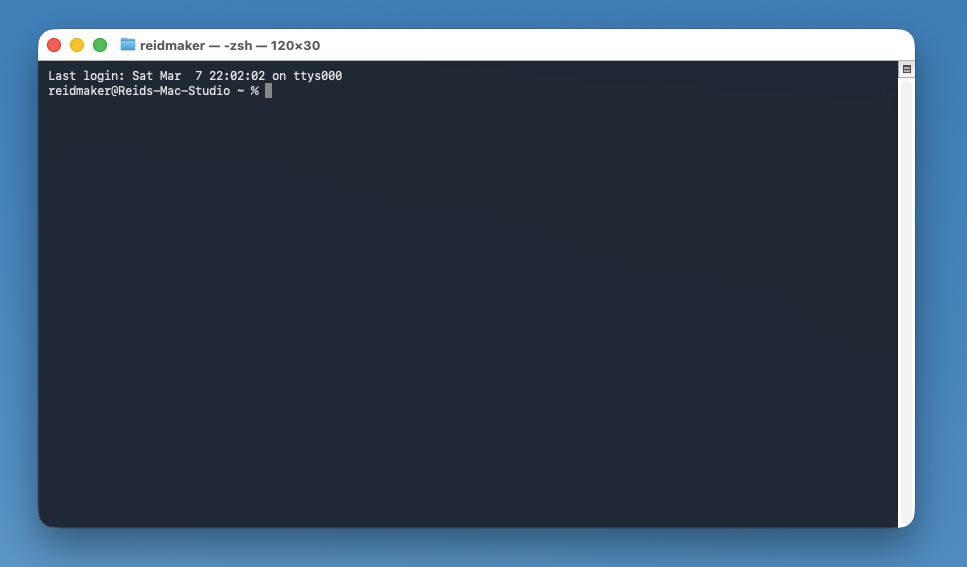
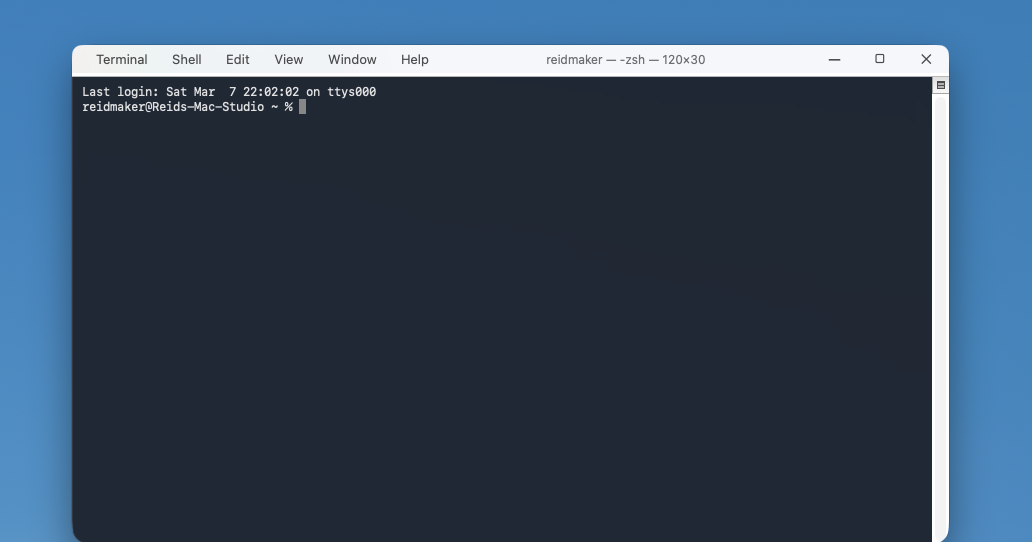
WinMode Pro goes further with per-window menu bars -- File, Edit, View menus right in each window's title bar, plus Windows-style close, minimize, and maximize buttons.
macOS default
With WinMode Pro
WinMode is completely free. No ads, no trial period, no premium tier. It runs in your menu bar and uses almost no resources.
brew install makersoft-ai/apps/winmode
What About Window Management?
Keyboard shortcuts are half the battle. The other half is window management. If you used Windows snap zones or FancyZones, you know how useful it is to drag a window to the edge of the screen and have it snap into position. macOS has extremely limited support for this.
This is where MakerZones comes in. It is a FancyZones-style window tiling manager for Mac. You draw custom zones on your screen using a visual editor, then hold a modifier key and drag any window into a zone to snap it. The same workflow you used on Windows with FancyZones, rebuilt natively for macOS.
MakerZones also does edge snapping -- drag a window to the screen edge for half-screen, quarter-screen, or full-screen tiling. If your workflow was dragging windows to edges on Windows, it works the same way here.
MakerZones has a free tier (2 zones, 1 layout) and a $4.99 one-time Pro upgrade for unlimited zones, edge snapping, window memory, and more.
brew install makersoft-ai/apps/makerzones
A Better Approach Than Relearning
The combination of WinMode and MakerZones covers the two biggest pain points of switching from Windows to Mac: keyboard shortcuts and window management. Install both, and your Mac starts feeling familiar within minutes instead of weeks.
This does not mean you should never learn Mac conventions. Over time, you might find some Mac shortcuts you prefer (the trackpad gestures are genuinely great, for example). The point is that you do not have to learn everything on day one. Start with what you know, and adopt Mac-specific features at your own pace.
Some people who use both platforms permanently -- a Windows desktop at work and a MacBook at home, for instance -- never switch. They keep WinMode running on the Mac so their muscle memory stays consistent across both machines. That is a perfectly valid way to work.
Getting Set Up
Both apps install through Homebrew in about 30 seconds:
brew install makersoft-ai/apps/winmodebrew install makersoft-ai/apps/makerzonesBoth will ask for Accessibility permissions in System Settings the first time you launch them. This is required for keyboard remapping and window management on macOS -- every app in this category needs it.
After that, WinMode just works. No configuration needed. MakerZones will show you a default layout that you can customize, or you can choose from built-in presets (2 columns, 3 columns, priority grid, and more).
Welcome to the Mac. You do not have to forget everything you already know.
Make your Mac feel like home
WinMode is free forever. MakerZones is free to start, $4.99 for Pro.